
Table of Contents
Recurring Transactions #
Effortless tracking of recurring expenses and income:
- Automatic Recurrence Detection: Recurring transactions are identified based on consistent patterns in name and amount.
- Custom Tokens for Pattern Matching: Users can assign tokens to recognize recurring patterns, enhancing the system’s ability to detect repeat transactions accurately.
User Journey: Recurring Prediction #
Goal: Help users automatically detect recurring transactions (like subscriptions, bills, salaries) by matching consistent item names across transaction history.
Entry Point: #
- User navigates to the “Recurring” tab or section from the main navigation
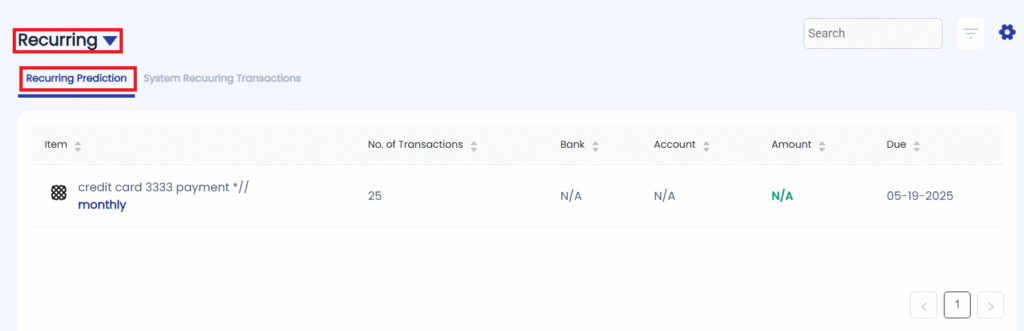
Steps: #
- System scans transaction history
- Looks for transactions with:
- Same or similar item names
- Looks for transactions with:
- Predicted recurring transactions appear
- Listed in the “Recurring Predictions” section
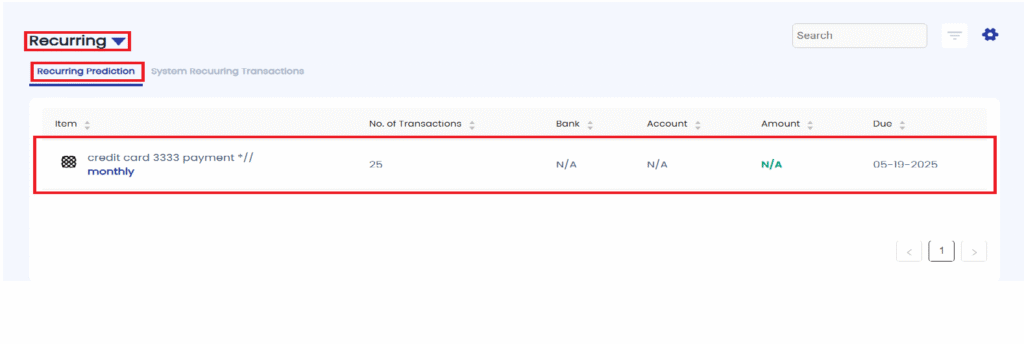
- Listed in the “Recurring Predictions” section
- User reviews prediction list
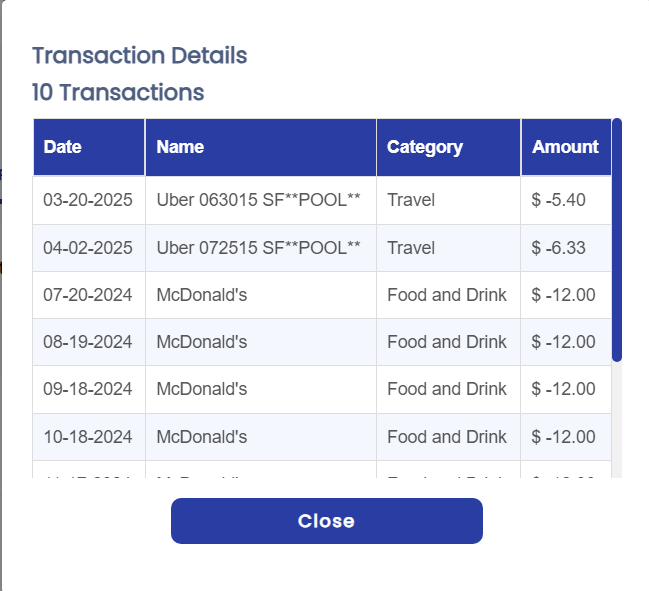
- Can click on each predicted item to:
- View all transactions under the respective predicted item.
- View all transactions under the respective predicted item.
- Can click on each predicted item to:
User Journey: Add a Token for System Recurring Transactions #
Goal: Allow users to define a token with one or more patterns to identify recurring transactions. The system uses this token to match and tag future (and optionally past) transactions automatically.
Entry Point: #
- User navigates to the “Recurring” tab
- User clicks on “Settings” button
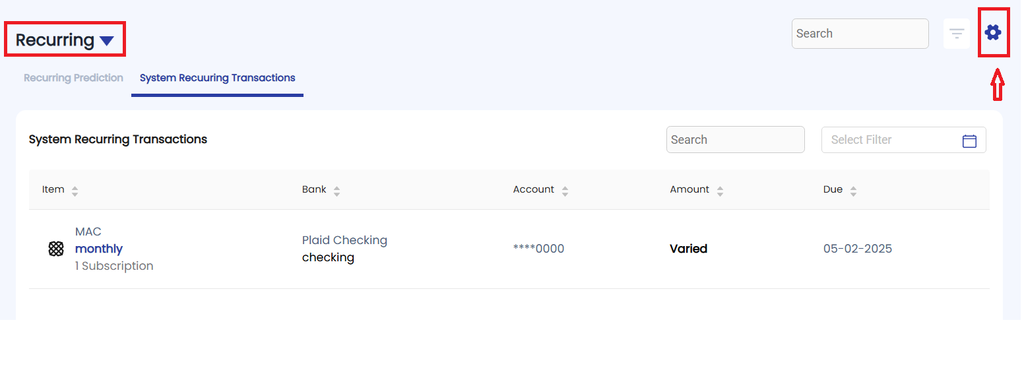
- Clicks “Add Token” button

Steps: #
- User clicks “Add Token”
- A form opens up
- A form opens up

- Step 1: Enter Token Details
- Token Name
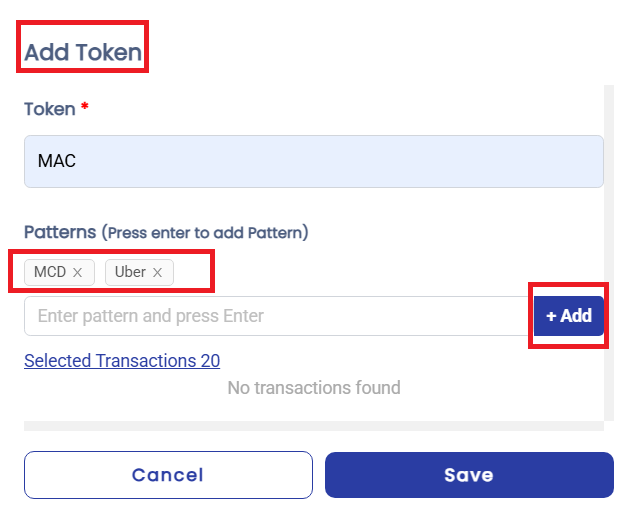
- Step 2: Define Pattern(s)
- User adds one or more patterns to match transactions
- Option to add multiple patterns under the same token
- User clicks “+ Add” to define additional matching rules
- Step 3: Preview Matching Transactions
- System fetches and shows a list of transactions that match the defined patterns
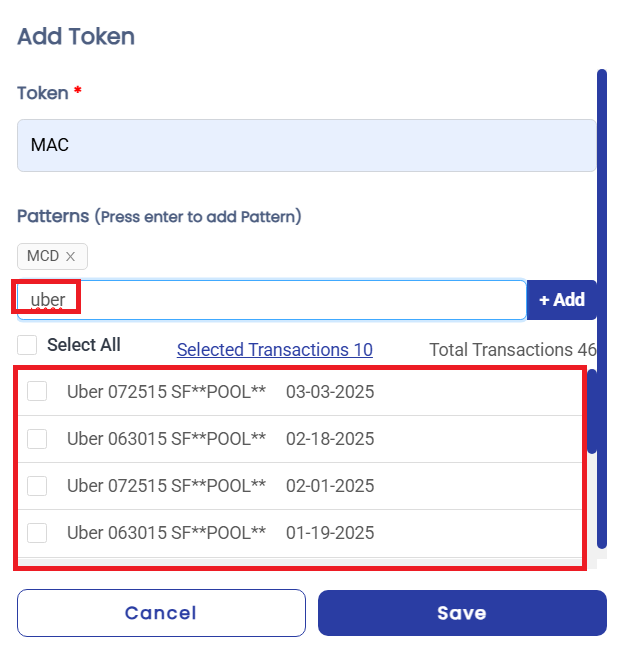
- Option to select all or any specific transactions

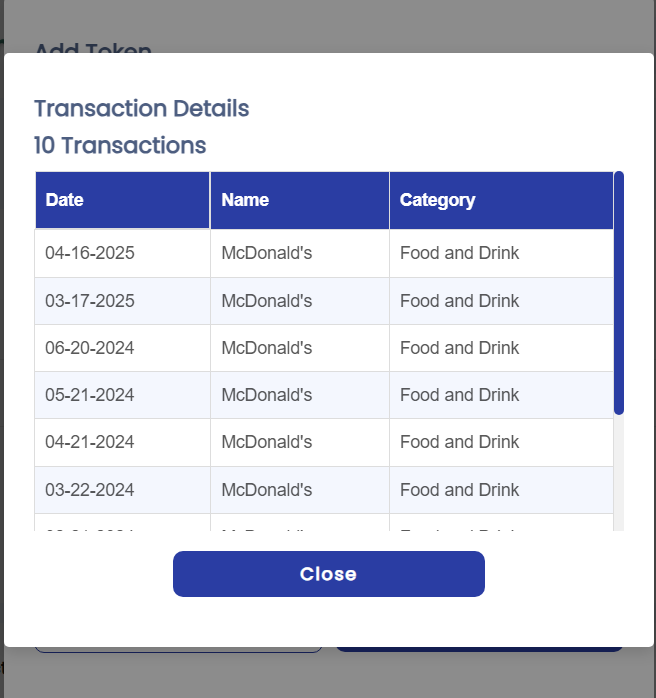
- User clicks “Selected Transactions” to view all selected transactions.
- Step 4: Save the Token
- User clicks “Save”

- System saves the token along with its patterns
User Journey: Edit Token #
Goal: Allow users to modify existing token.
Entry Point: #
- User navigates to the “Recurring” tab
- User clicks on “Settings” button
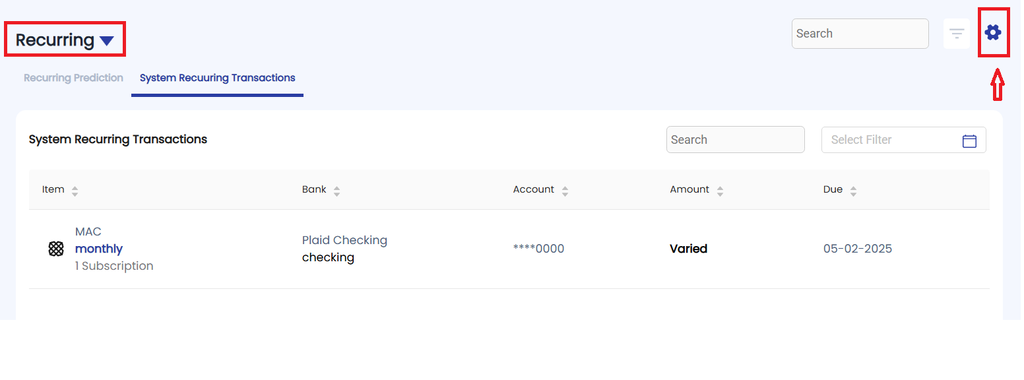
- User views the tokens listing
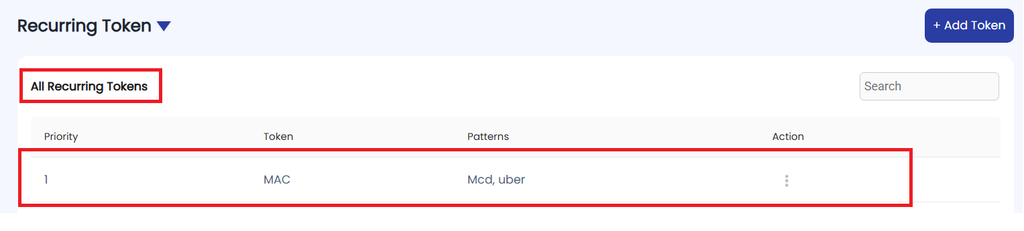
Steps to Edit: #
- User sees a list of all tokens
- User clicks “Three Dots” against a token
- User clicks Update Token option

- User clicks Update Token option
- User can update the name of the token
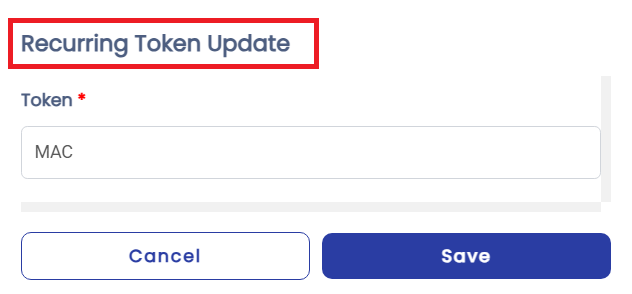
- User clicks “Save”

User Journey: Delete Token #
Goal: Allow users to delete existing token.
Entry Point: #
- User navigates to the “Recurring” tab
- User clicks on “Settings” button
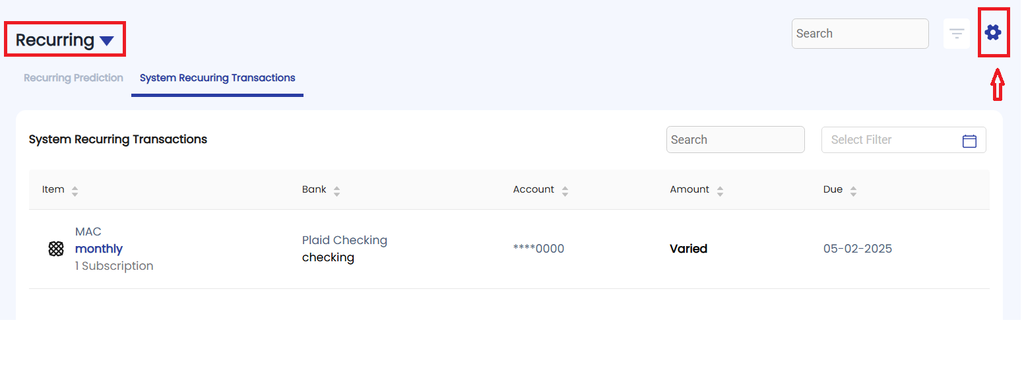
- User views the tokens listing

Steps to Edit: #
- User sees a list of all tokens
- User clicks “Three Dots” against a token
- User clicks Update Token option
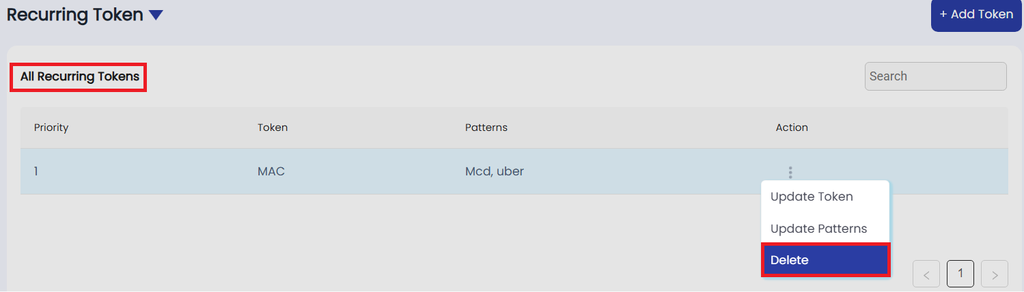
- User clicks Update Token option
- User clicks on “Yes, Delete it!” button

User Journey: Update Pattern
User Journey: System Recurring Transaction Based on Token Pattern #
Goal: Allow users to define token-based patterns (like keywords or parts of item names and categories) so the system can automatically identify matching transactions as recurring.
Entry Point: #
- User navigates to the “Recurring” tab
- Clicks on “System Recurring Pattern” tab
Steps: #
- System recurring transactions appear
- Listed in the “System Recurring Transaction” section
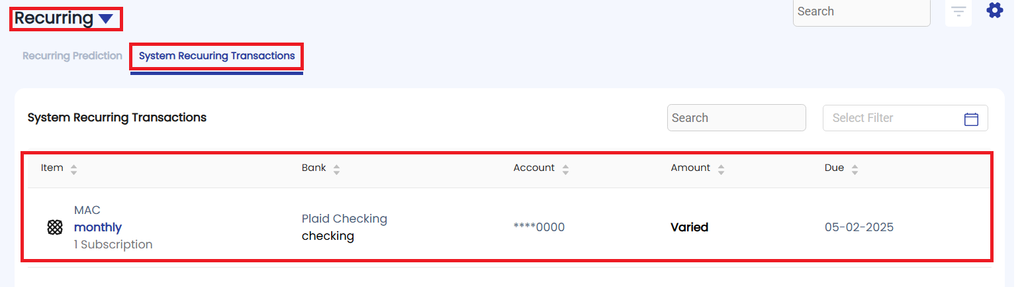
- Listed in the “System Recurring Transaction” section
- User reviews System Recurring Transactions list
- Can click on each item to:
- View all transactions under the respective item.
- Can click on each item to:


